WooCommerce
Both editions are built for WooCommerce: full-width shop pages, an optional shop sidebar, a floating cart and a one-click Quick Checkout button.
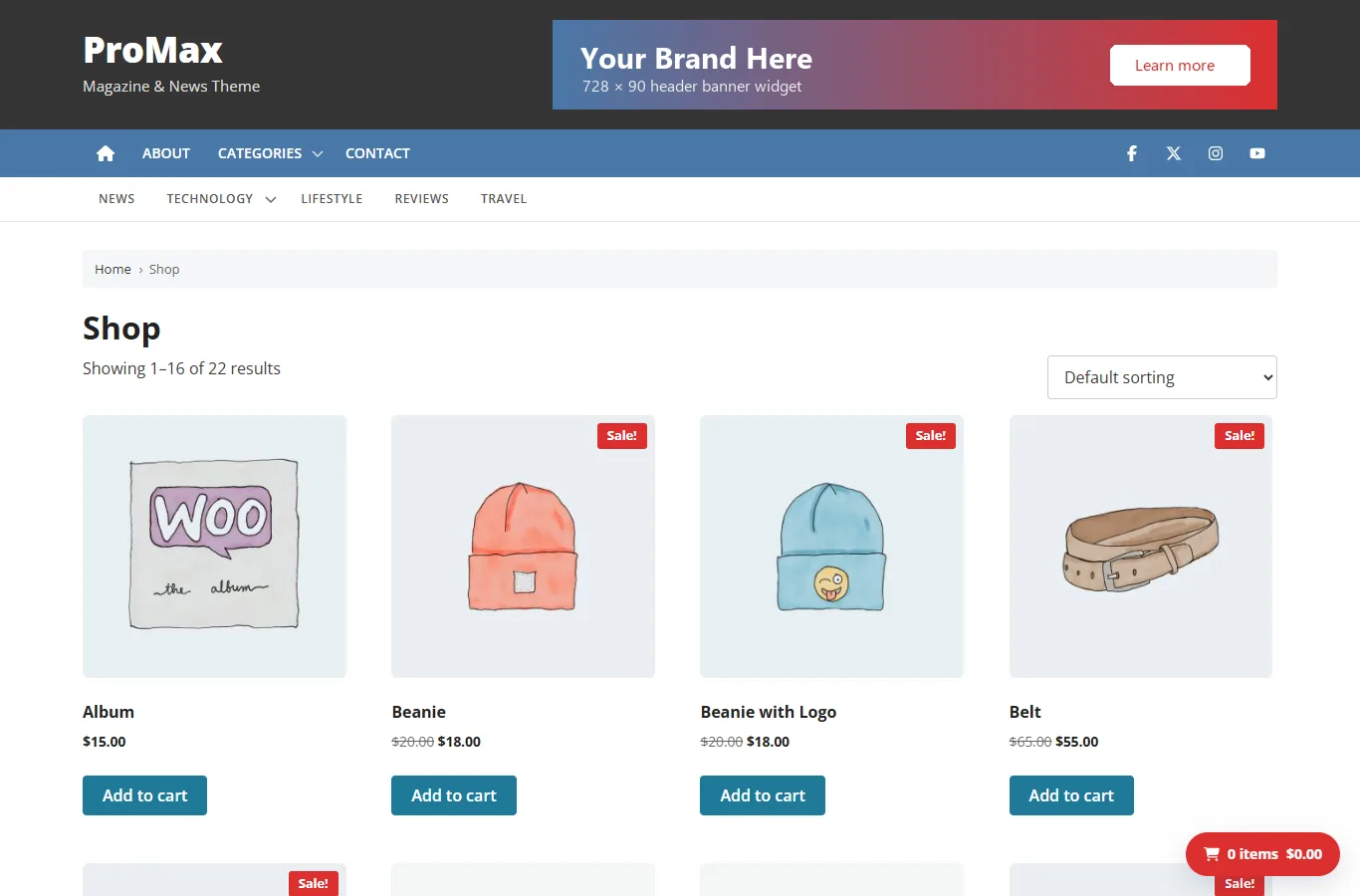
Shop layout
Shop pages are the shop, product categories and tags, single products, the cart, checkout and My Account. By default they're full width, without the blog sidebar, so products and forms get the room they need.
Change it in Customize › ProMax WooCommerce (Pro: ProMax WooCommerce Settings) › Shop layout:
| Option | Result |
|---|---|
| Full width, no sidebar (default) | No sidebar on any shop page. 4 products per row. |
| Shop Sidebar | Shows the Shop Sidebar widget area, separate from your blog sidebar. Add product filters, categories or a mini cart in Appearance › Widgets › Shop Sidebar. 3 products per row. |
| Same sidebar as the blog | Uses Sidebar Right and Popular Posts, like the rest of the site. 3 products per row. |
If the chosen sidebar has no widgets, the page stays full width. Related products and upsells use the same number of columns.
Pro also has Shop sidebar position (right or left). A layout chosen in the Layout box of the cart, checkout or My Account page overrides the shop setting for that page.
Product, cart and checkout
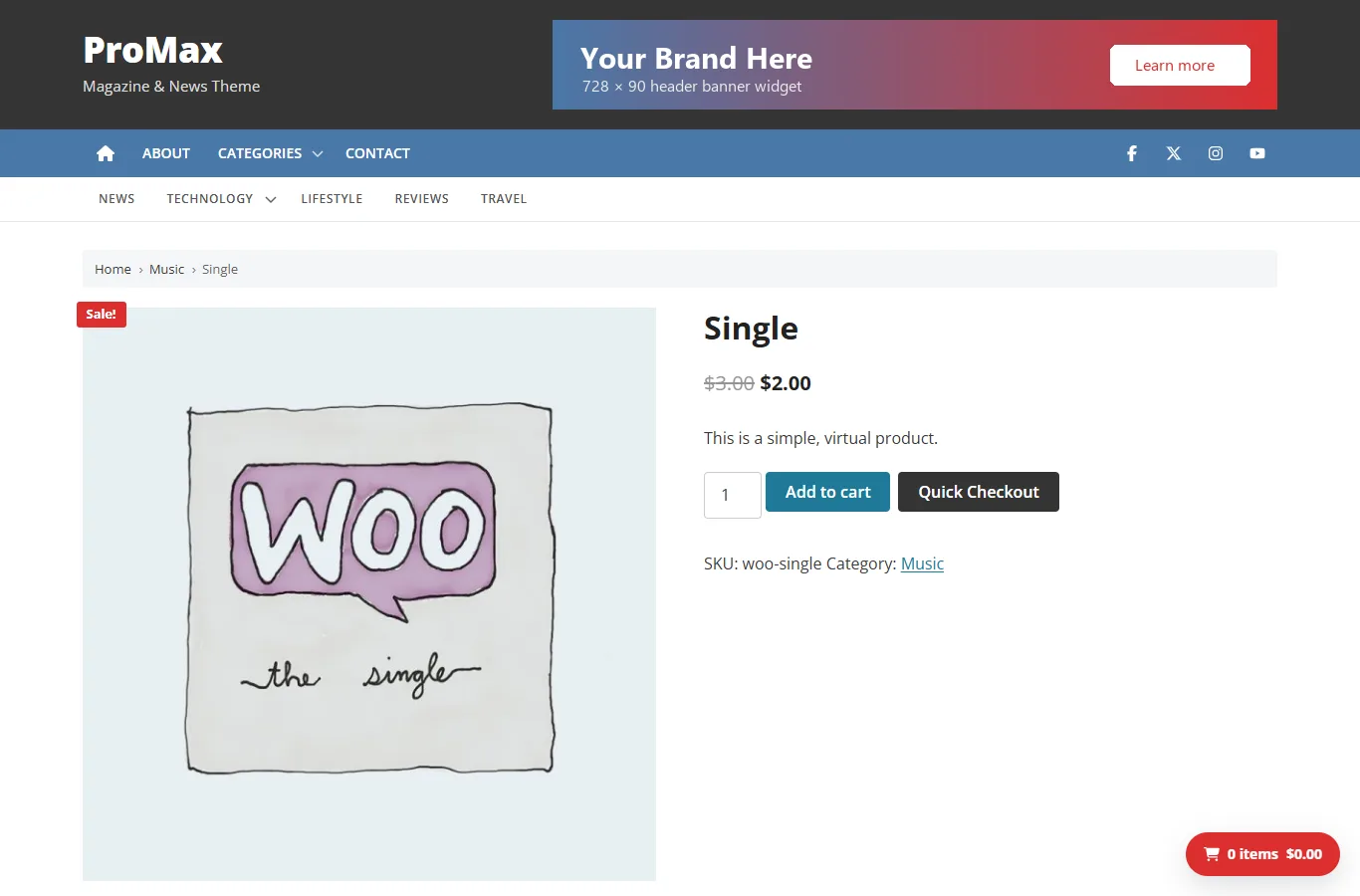
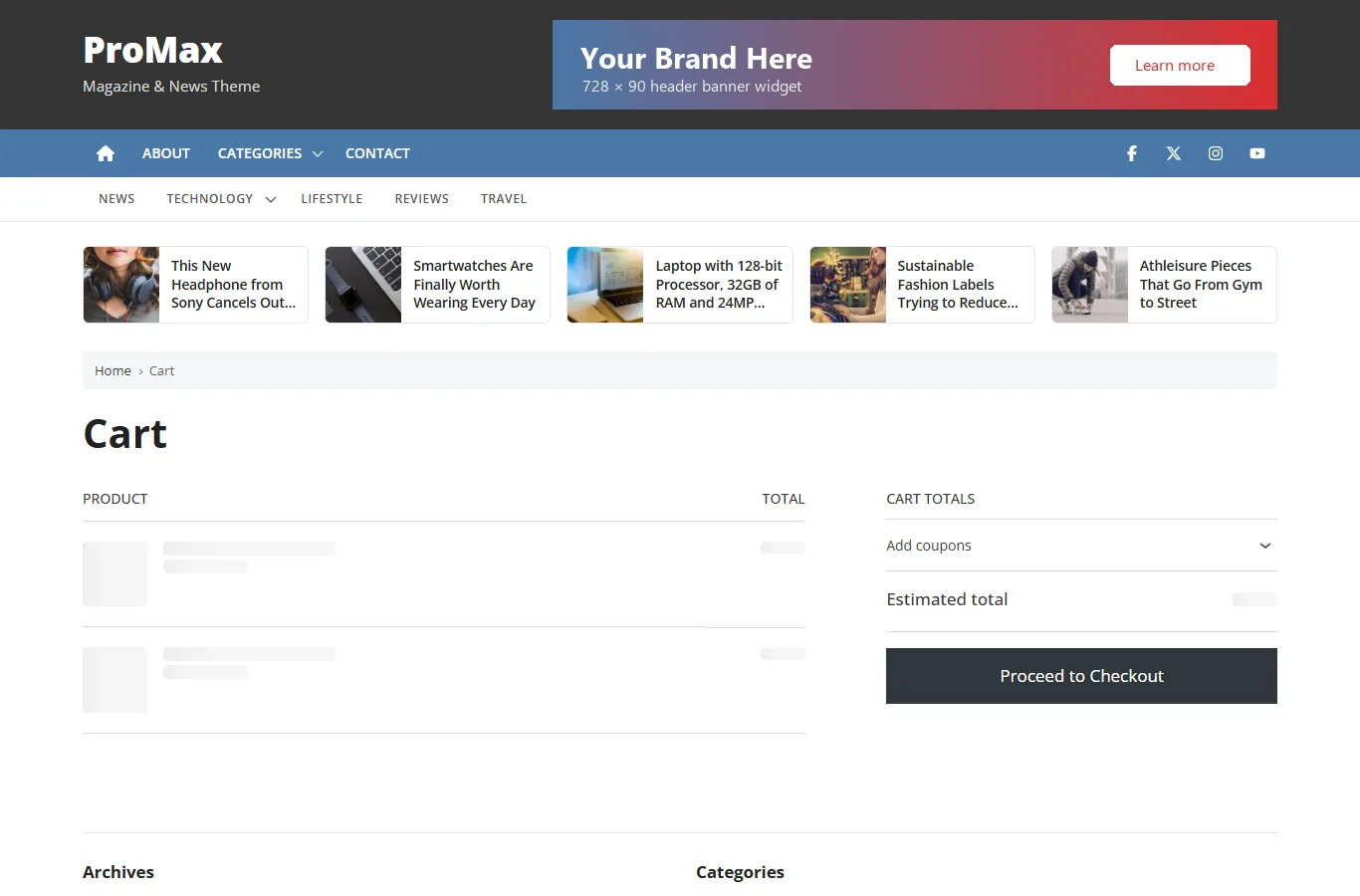
- Shop pages have no author box or share buttons.
- Shop, category and product pages show WooCommerce's breadcrumb trail (for example Home › Decor › WordPress Pennant), which also tells Google the page's place in your shop.
- Login and registration forms on My Account keep a comfortable reading width.
Floating cart
A button in the bottom corner that shows the number of items and the cart total, and opens the cart. It updates by itself when a product is added, and hides on the cart and checkout pages. Turn on Floating cart button in the WooCommerce section of the Customizer (off by default).
Quick Checkout
Adds a second button next to Add to cart on simple products. It adds the product and goes straight to checkout, which suits shops that sell one item at a time. It's on by default; change the button text (both editions) and colour (Pro) in the WooCommerce section. Variable, grouped and external products keep the normal button only.
Product gallery
Switch WooCommerce's gallery features on or off:
| Feature | Free default | Pro default |
|---|---|---|
| Lightbox (click an image to see it full size) | On | On |
| Zoom on hover | Off | On |
| Gallery slider | Off | Off |