Menus & widgets
ProMax and ProMax Pro share the same 3 menu locations and 10 widget areas, so menus and widgets stay put when you switch between them.
Where everything goes
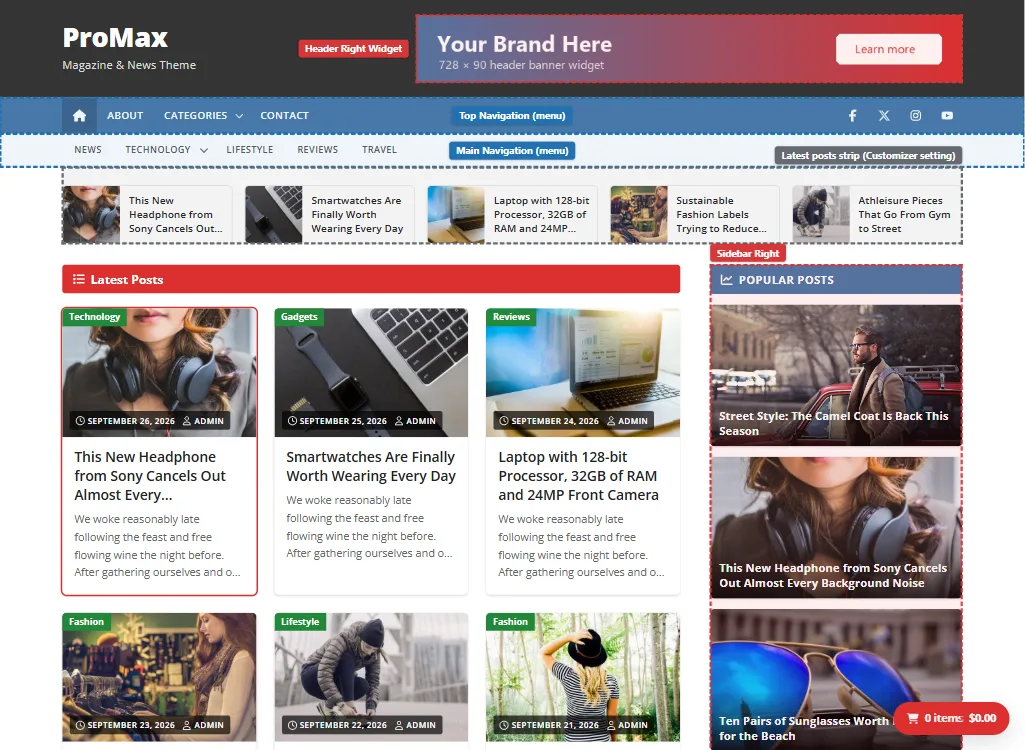
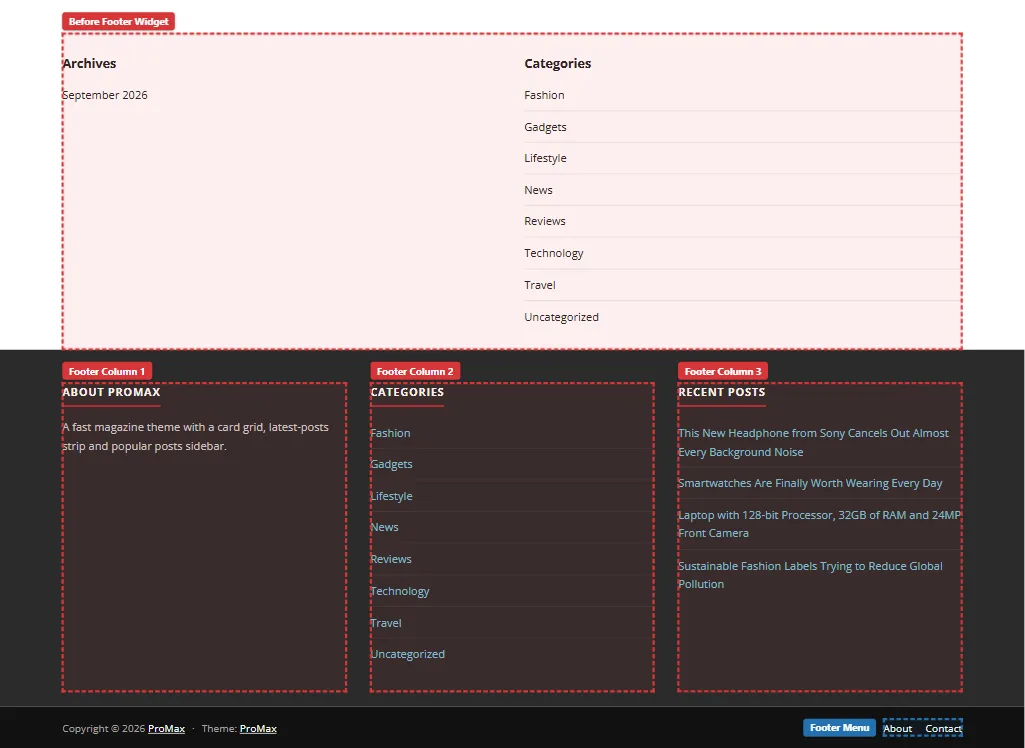
Menu locations
Create menus in Appearance › Menus (or Customize › Menus) and tick a Display location.
| Location | Where it shows | Notes |
|---|---|---|
| Top Navigation | Coloured bar below the header | Starts with a home icon. Social icons sit on the right. Dropdowns supported. |
| Main Navigation | White bar below the top bar | Ideal for categories. Dropdowns supported. Hidden when no menu is assigned. |
| Footer Menu | Copyright bar at the very bottom | One level only, no dropdowns. |
On phones
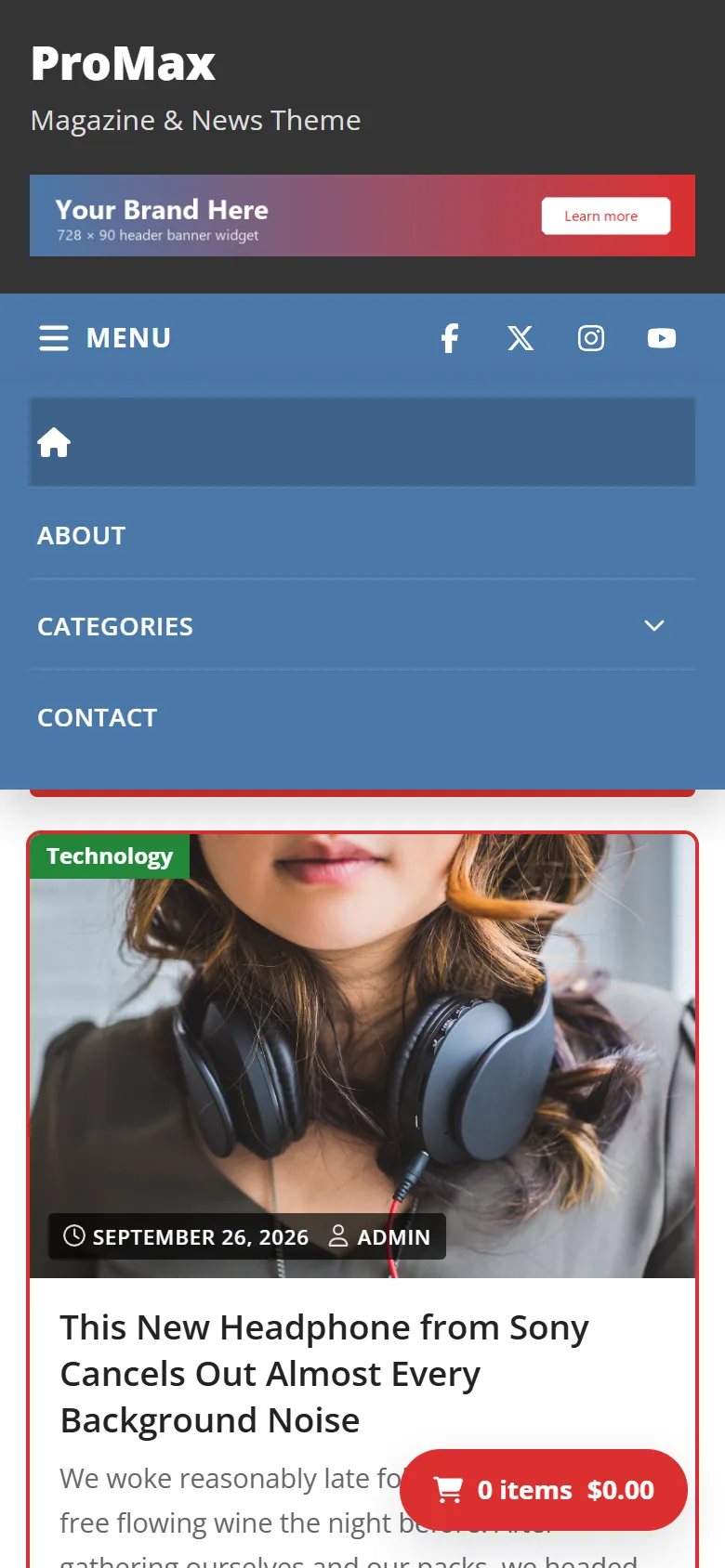
Both bars collapse into toggle buttons on screens narrower than a tablet. The menus work with a keyboard (Tab, Esc), with touch (first tap opens a dropdown, second tap follows the link) and with screen readers.
Pro Change the button labels (Menu and Category) and add a search button to the main bar in Theme Options › Mobile.
Menu options
- Free Turn either bar off in Colors & Layout › Top navigation bar / Main navigation bar.
- Pro In Theme Options › Menu Navigation: show the home icon in the top bar, the main bar or nowhere; turn either bar off; set background, hover and link colours for each bar.
- Pro In Social Icons, choose what sits on the right of the top bar: social icons, a search form or nothing.
- Icons in menu items: type Font Awesome 4 classes such as
fa fa-camerain a menu item's CSS Classes field (turn on Screen Options › CSS Classes first). This needs the Load Font Awesome 4 icon font option, which is on by default.
Widget areas
Add blocks or widgets in Appearance › Widgets or Customize › Widgets. Empty areas take up no space.
| Widget area | Where it shows | Good for |
|---|---|---|
| Header Right Widget | Next to the logo | A 728×90 banner (Image block or ad code in a Custom HTML block) |
| Below Navigation Widget | Full width, directly below the menus | Announcements, a wide ad |
| Sidebar Right | Next to posts, pages and archives (left side when Pro's layout is set to left) | Search, recent posts, categories, newsletter |
| After Single Post Content | Below the comments on single posts | Related posts, ads, newsletter sign-up |
| After Page Content | Below the content on pages | Calls to action, contact details |
| Before Footer Widget | Full width, above the footer columns | Category lists, Instagram feed, ads |
| Footer Column 1, 2, 3 (Footer Widget 1–3 in Pro) | Three columns in the dark footer | About text, links, recent posts |
| Shop Sidebar | WooCommerce pages, when Shop layout is set to Shop Sidebar | Product filters, cart, product categories. See WooCommerce. |
The latest posts strip and the Popular Posts list at the top of the sidebar are Customizer settings, not widgets. In ProMax they're in Theme Options; in Pro, in Theme Options › Latest Post and Popular Post Sidebar. The Pro slider and news ticker are also in Theme Options.
Popular Posts
The Popular Posts list shows the posts with the most comments, as image cards with the title on the image. Change its heading or turn it off in the theme options. Pro also sets how many posts it shows (1–12).
Latest posts strip
A row of the newest posts with small thumbnails, below the menus. ProMax shows the 5 latest posts. Pro sets the number (1–8), limits it to one category, sets the title colour and can hide it on phones and tablets.